Before you begin
From the SMCM Self-Service Portal Home page.
- Click "Student Portal Homepage" and enter your User ID and password to log in.
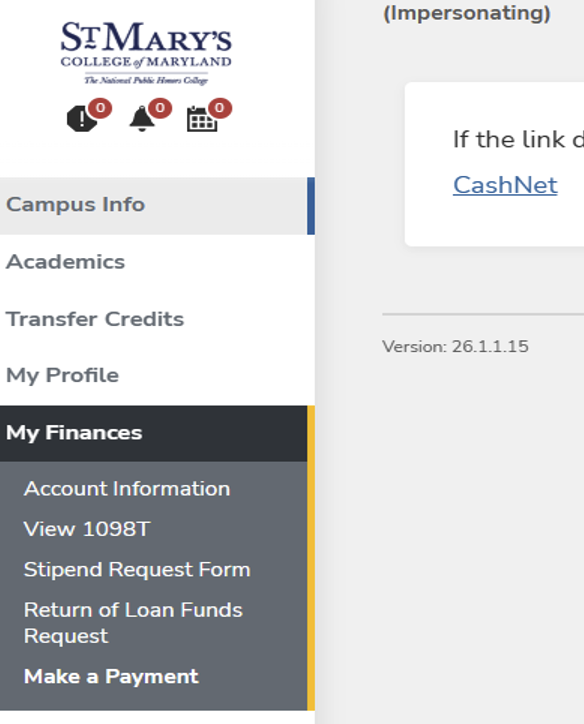
- Navigate to My Finance > Make a Payment > Cashnet.
- A new window will appear after selecting the blue "Cashnet" hyperlink.
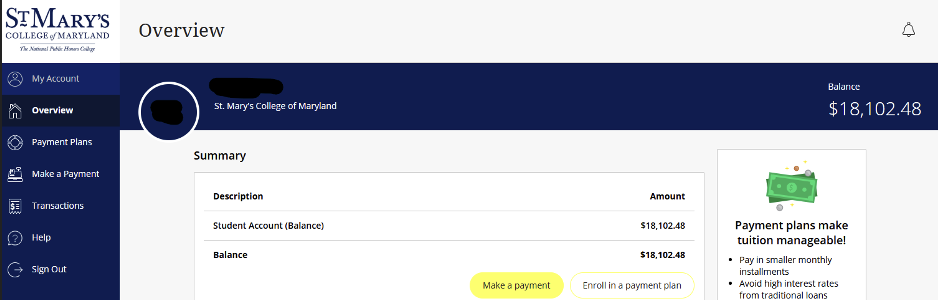
This new window opens the College’s third-party payment processing system, Illumia/Transact/Cashnet. The Overview/Cumulative Balance page displays your current balance but does not include your pending financial aid package.
To include pending financial aid when determining your payment amount, refer to:
- Appendix A for instructions on paying your balance in full.
- Appendix B for instructions on setting up a payment plan.
How to Calculate Pending Financial Aid when Paying Your Balance in Full
Step 1
Obtain the Cumulative Balance amount from the Overview section.
Step 2
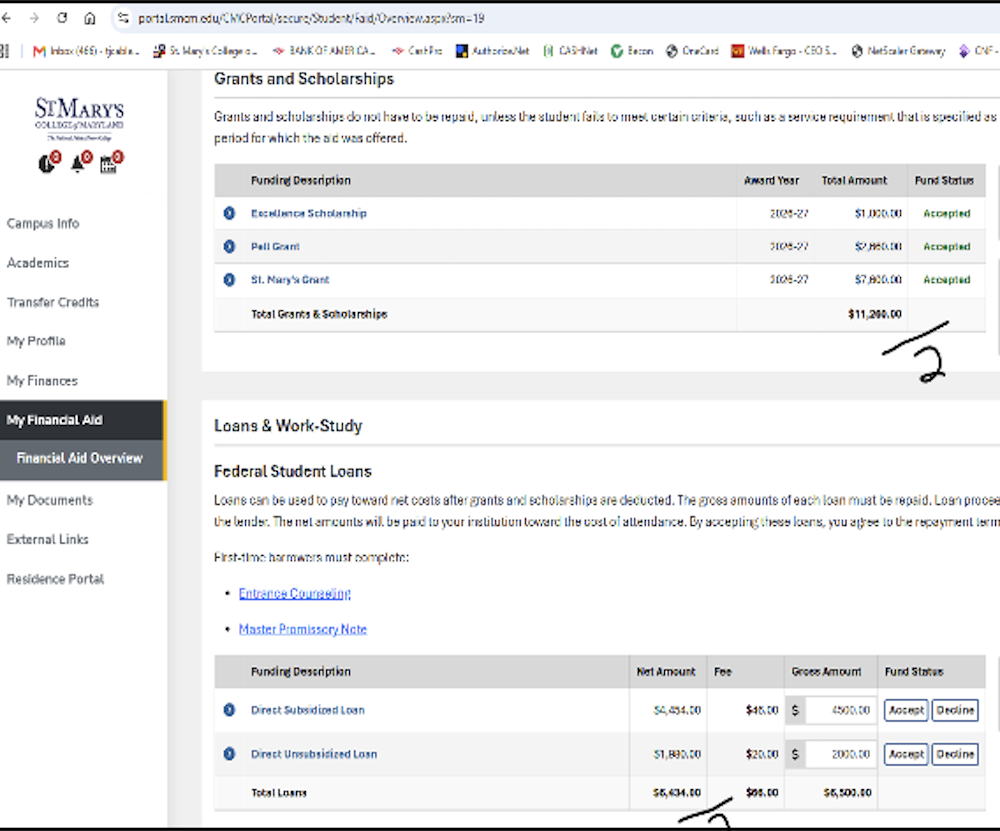
Obtain your Pending Financial Aid Package from the Student Portal (see snip). The portal displays your financial aid as a total annual award, so you will need to divide each award amount by 2 to determine the amount applied to each semester (fall and spring). This ensures you enter the correct financial aid amount during the payment process.
Grants & Scholarships = $11,260/2 = $5,630.00 Fall Award
Federal Student Loan = $6,434/2 = $3,217.00 Fall Award
Step 3
Use the balance from Step 1 and subtract your pending financial aid amounts to determine your Pay in Full Balance.
Example Calculation:
- Current Balance (Step 1): $18,102.48
- Subtract Grants & Scholarships: −$5,630.00
- Subtract Student Loans: −$3,217.00
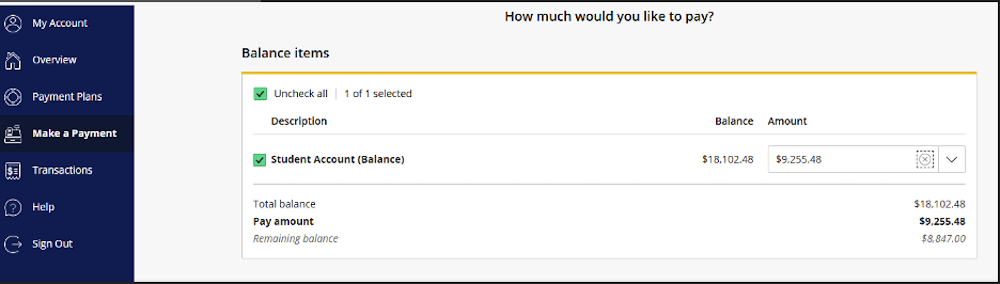
Pay in Full Balance: $9,255.48
Click "Make a Payment" as shown in Step 1. Enter the "Pay in Full Balance" amount manually. Note: The remaining balance will be covered by your financial aid once it is applied by the College, typically in late August or early September for the fall semester.
Step 4
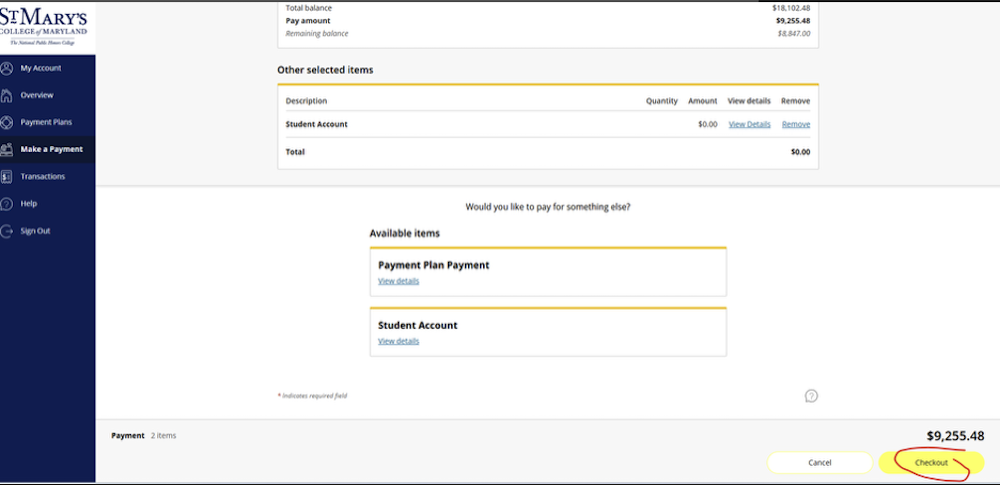
Scroll to the bottom of the page and click "Check Out." Follow the remaining checkout instructions by entering your bank account or credit card information to complete the payment process.
How to set up a Payment Plan in Cashnet for your Student Bill
Step 1
Follow Appendix A: Steps 1, 2, and 3. However, this time, do not select "Make a Payment."
Step 2
Select "Enroll in Payment Plan" to continue with the payment plan setup process.
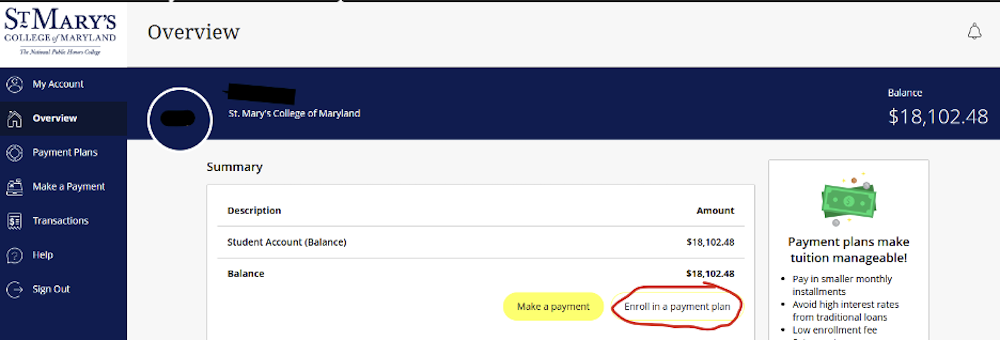
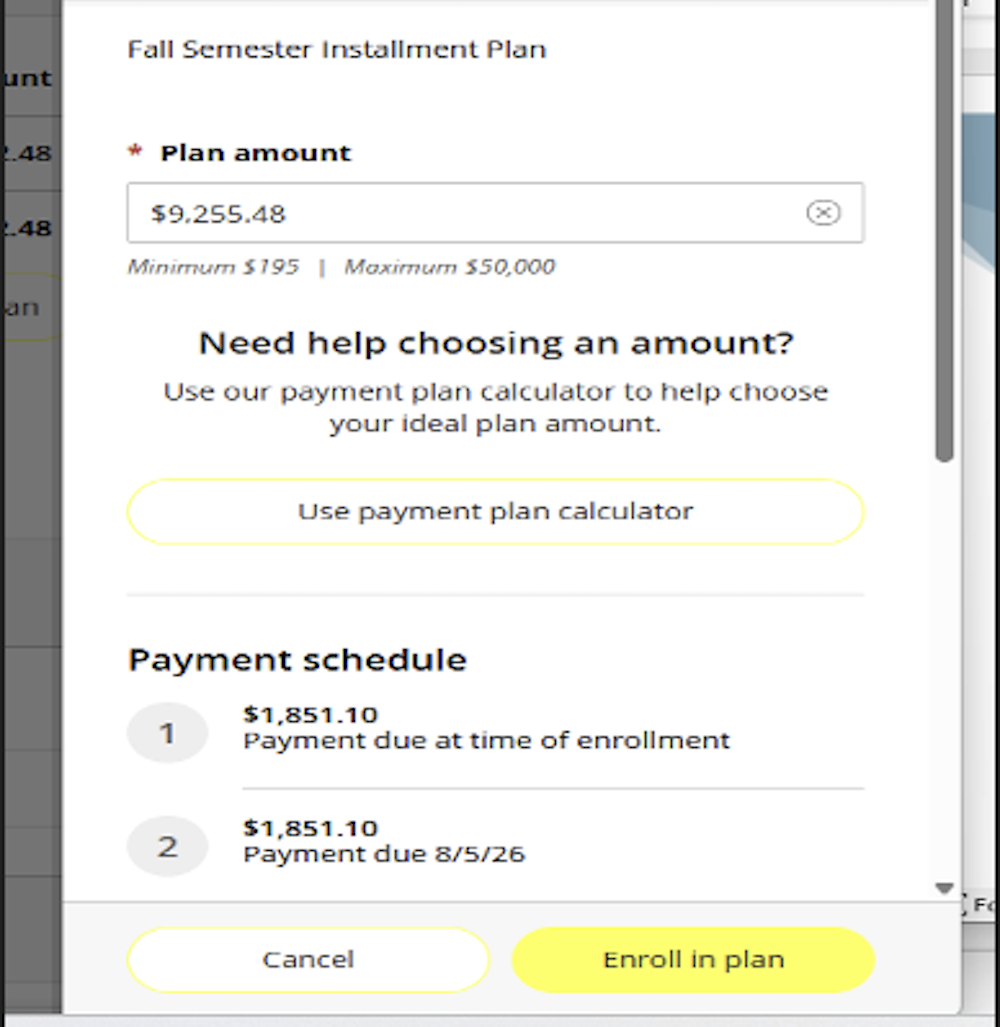
A side window will appear where you will enter the "Pay in Full Balance" amount from Appendix A – Step 3 see snip for example. Be sure to scroll through the payment plan details to review the scheduled payments and due dates before continuing.
Step 4
Follow the remaining instructions within the "Enroll in Plan" checkout process by entering your bank account or credit card information to complete the required first installment payment.